Step by step drawing lessons, built for real learning

Drawvy combines guided drawing lessons, a camera trace tool and AI feedback in one app. Here is what every feature does and why it helps you learn to draw faster.

Drawing lessons that draw themselves

Every lesson is a short sequence of steps. In each step the new lines are highlighted, the lines you already drew fade into the background, and a one-sentence tip explains what to look for. The strokes animate one by one, so you see the order and direction of each line, not only the finished picture.

You set the pace: step forward and back, replay a step, or slow the animation down. Learning paths run from Basics (lines, shapes, shading) through Beginner, Intermediate and Advanced.

  • Categories: animals, people and faces, anime and cartoon characters, nature, objects, food, vehicles and easy lessons for kids
  • The first lessons of every path are free
  • All lesson content is stored in the app, so it works offline
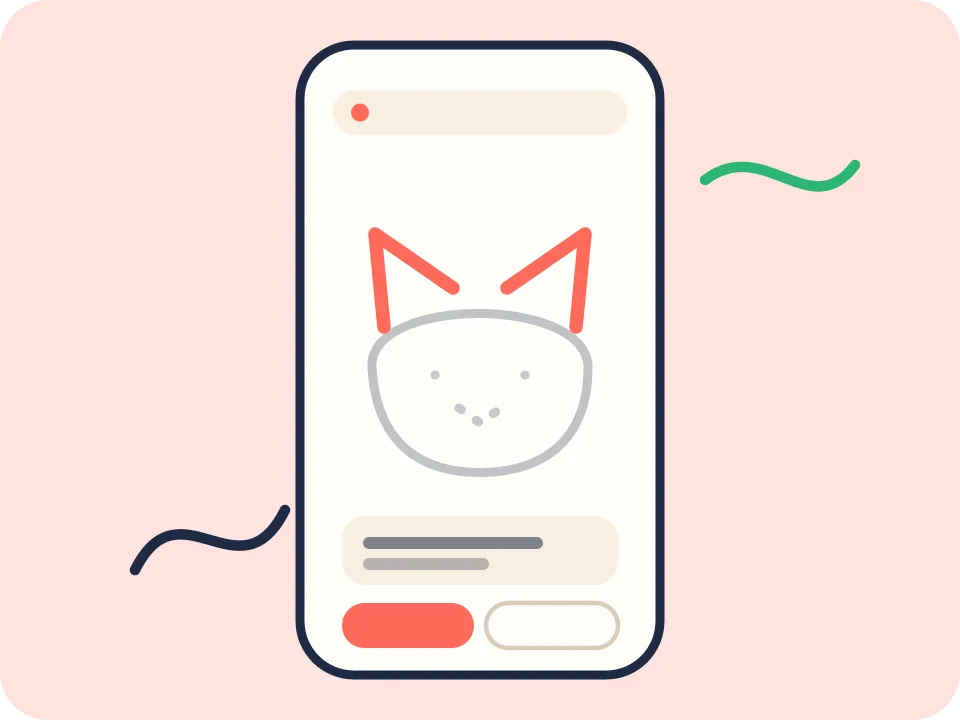
Phone showing a step-by-step drawing lesson with highlighted new lines

How to draw on paper or on screen

Paper mode turns your phone or tablet into a guide: you read the step, then draw it with a real pencil on real paper. Screen mode lets you draw on the built-in canvas over a faint guide of the lesson.

Both modes use the same lessons. Choose paper when you want a sketchbook habit, or the screen when you only have a minute.

  • Paper mode: the screen shows the step, you draw on paper
  • Screen mode: draw on the canvas over an adjustable guide layer
  • Switch modes in any lesson

Line accuracy score on screen

When you draw on screen, Drawvy compares your stroke with the guide path and turns the difference into a star rating for the step and the lesson. It is a quick, honest signal of how close you are, so you can focus on the lines that need work.

Trace with your camera

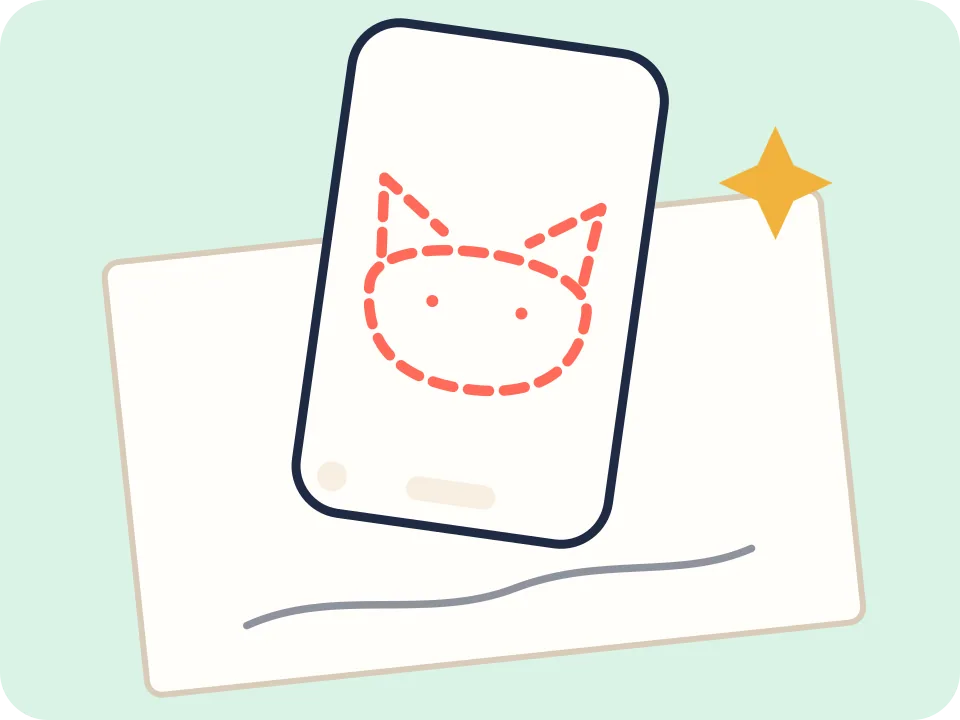
Camera trace places a semi-transparent template over your live camera view. Use a lesson image or your own photo converted into a sketch, then lay your paper under the phone or hold it above, and copy the lines.

Controls include opacity, scale, rotation, position lock, flash, a screen brightness lock and a timed photo. It does not need ARKit or ARCore, so it runs on most phones.

  • Great for sketch practice and for copying anime or cartoon characters accurately
  • Lock the template so it does not move while you draw
  • Take a timed photo of your result
Camera trace view with a see-through cat template over a sheet of paper

AI feedback for paper drawings

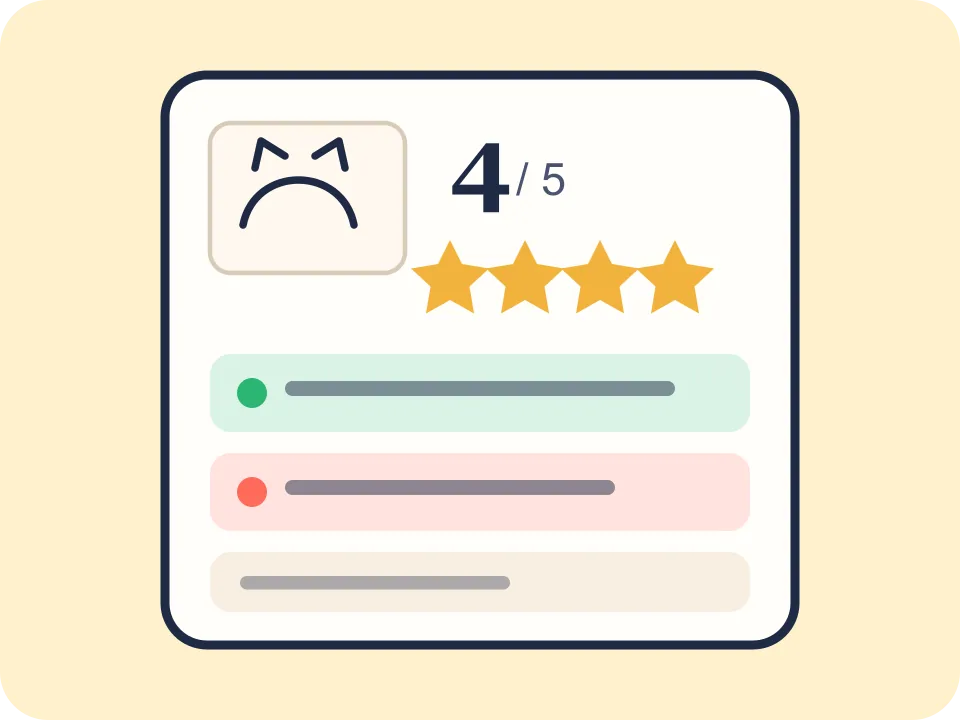
Take a photo of your paper drawing. Together with the lesson goal image it is sent to an AI model, which returns a score from 1 to 5, three strengths and three tips to improve, written in your language.

We do not store your photo. It is processed to create the feedback and is not kept on our servers. Free users get one AI feedback per day, and you can earn one more by watching a rewarded ad. Premium has a generous daily limit. Under-13 profiles need a parent to approve it first.

  • Feedback is guidance for learning, not an art exam
  • Your result is saved in your drawing journal on your device
AI feedback card with a 4 out of 5 score, strengths and tips

Drawing journal and progress

Save photos of your paper drawings (with crop) and your canvas drawings. Each entry links to its lesson and AI result, and you can compare a before and after or scroll a timeline of your progress. Share a card with your drawing and the Drawvy mark whenever you like.

  • Your drawings stay on your device
  • iOS and Android system backups can restore them on a new phone

Daily challenge, streaks and badges

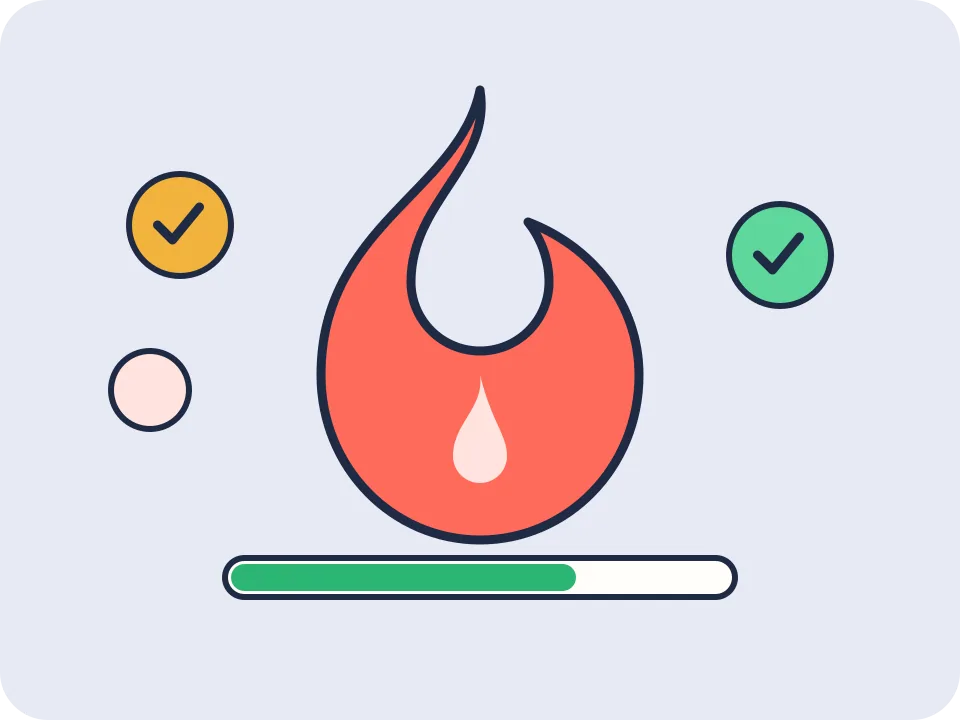
A daily challenge gives you a small goal each day. Build a streak, use a streak freeze when life gets busy, earn XP and level up, and collect badges such as First Lesson, 7-Day Streak or Category Master. A weekly goal counts the days you practised, and finishing a lesson ends with a short celebration.

Daily streak flame, XP bar and badges

Drawing for kids and profiles

Create local profiles with a name, avatar and age group. A kid profile shows only easy and kids lessons, ads are not personalised, and buying Premium or using AI feedback sits behind a parental gate. Free users can have 2 profiles, Premium up to 4.

Drawvy asks for age neutrally the first time you open it, is not in the Kids category of the App Store, and is designed for a mixed audience.

Ready to try it?

Start with a free lesson and see how fast a few clear steps can improve your drawing.

Download on theApp StoreComing soonGet it onGoogle PlayComing soon

Read the FAQ